Getting Started With 3D Modeling: A 2026 Guide
Last Updated: October 23, 2026
Quick Summary
3D modeling is the process of creating a digital three-dimensional representation of an object or scene using specialized software. Unlike 2D design, which works with flat surfaces, 3D modeling builds objects with depth, height, and width that you can rotate and view from any angle.
- Blender is the most popular free 3D modeling software with modeling, texturing, lighting, and rendering in one package.
- Start with simple geometric forms like cubes and spheres before attempting complex organic shapes.
- Polygon modeling uses vertices, edges, and faces connected by topology to build objects.
- Export models in STL format for 3D printing with closed mesh and consistent normals.
- Minimum hardware specs are 8GB RAM, quad-core processor, and a dedicated graphics card.
Table of Contents
- What 3D Modeling Is and How It Differs From 2D Design
- Best 3D Modeling Software for Beginners
- How to Make a 3D Model: Core Workflow Steps
- Beginner 3D Modeling Projects to Build Your Skills
- 3D Modeling for 3D Printing: What You Need to Know
- Your First Month: A Structured Learning Plan
- Common Beginner Mistakes and How to Avoid Them
- Hardware, Accessibility, and Total Cost
- Frequently Asked Questions
What 3D Modeling Is and How It Differs From 2D Design
3D modeling is the process of creating a digital three-dimensional representation of an object or scene using specialized software.
The core difference is dimensionality and workflow. In 3D modeling, you construct geometry in three-dimensional space, so you can walk around your model, light it from different directions, and prepare it for 3D printing, product visualization, or animation.
3D modeling serves different purposes depending on your goals. Prototyping a product for manufacturing demands precision and technical accuracy.
The learning curve for 3D modeling is steeper than 2D design because you manage more variables: camera angles, lighting, material properties, and spatial relationships.
Best 3D Modeling Software for Beginners
Free and Low-Cost Options
Starting with free software removes the financial barrier to learning. Many professionals began their careers with free tools and still use them for specific tasks.
Blender is the most popular free 3D modeling software available. It's open-source, actively developed, and includes modeling, texturing, lighting, rendering, and animation in a single package.
Fusion 360 offers a free tier for personal, hobbyist, and educational use. For parts destined for 3D printing or engineering, its parametric modeling approach gives you precision and the ability to modify designs programmatically.
Tinkercad is browser-based and designed for beginners. It simplifies 3D modeling into dragging, dropping, and combining basic shapes, which works well for learning fundamentals and creating simple objects quickly.
Paid Software With Strong Community Support
Paid software often includes better performance, more advanced features, and dedicated support.
Maya and 3ds Max are industry standards for animation and visual effects.
ZBrush specializes in digital sculpting and is the preferred tool for character design, creature modeling, and high-detail organic shapes.
Cinema 4D is known for motion graphics and procedural modeling. It's more intuitive than Maya for beginners and has excellent built-in rendering.
How to Make a 3D Model: Core Workflow Steps
From Idea to Reference Images
Every successful 3D model starts with clear reference material. Before opening software, gather images of the object from multiple angles.
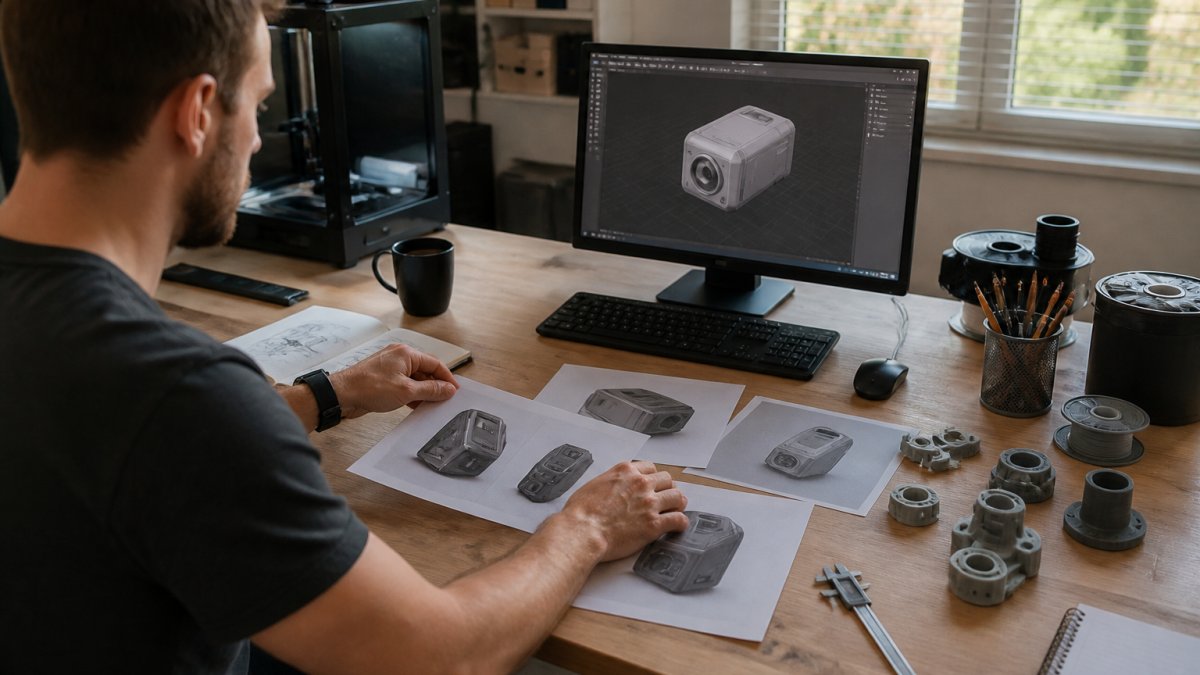
Create a mood board or folder with front, side, and top-view references. For real objects, photograph them yourself or find high-quality images online.
Import reference images into your software as background planes or floating guides. This keeps them visible while you work and prevents drifting from intended proportions.
Object Mode and Edit Mode Basics
Understanding the distinction prevents frustration. In object mode, your model is a single entity; in edit mode, you work with its building blocks. Switching between the two is fundamental to the modeling workflow.
Start in object mode to position your base shapes, then enter edit mode to refine geometry. Many beginners get stuck trying to edit geometry in object mode, wondering why changes don't work.
Mesh Creation and Polygon Modeling
Polygon modeling builds objects from vertices (points), edges (lines connecting points), and faces (polygons created by connected edges).
Start with basic shapes: cubes, spheres, and cylinders. These primitives are your foundation. Add detail by subdividing faces, extruding geometry, and connecting new edges.
Clean topology matters more than you'd expect. Poorly connected geometry causes problems when applying materials, rendering, or preparing models for 3D printing.
Beginner 3D Modeling Projects to Build Your Skills
Practice Projects by Difficulty Level
Start with simple geometric forms before attempting complex organic shapes. This progression builds your understanding of how software handles different modeling approaches.
Week 1-2 projects: Model a simple mug, a wooden cube, or a basic chair. These objects have clear geometry and teach fundamental extrusion and subdivision techniques. They're forgiving enough that small mistakes don't derail the model.
Week 3-4 projects: Move to objects with more detail: a phone, a shoe, or a decorative vase. These introduce curved surfaces and complex topology decisions, and you'll start breaking complex shapes into manageable modeling steps.
Month 2 projects: Attempt character heads, mechanical parts, or detailed environmental objects. These require understanding proportions, anatomy, or technical specifications. Modeling becomes less about following steps and more about problem-solving.
Building a Portfolio as You Progress
Save every model you complete, even rough ones. Your portfolio shows progression and documents what you've learned.
Document your work by rendering clean images of each model. Show multiple angles and lighting setups. Write brief descriptions of what you learned from each project.
Share your work in online communities. Platforms dedicated to 3D modeling offer feedback that accelerates learning. Constructive criticism from experienced modelers highlights mistakes you might not catch alone.
3D Modeling for 3D Printing: What You Need to Know
File Formats and Export Workflows
3D printing requires specific file formats and mesh requirements that differ from visualization or animation workflows.
Before exporting, ensure your model is "print-ready." This means the mesh is closed (no holes), has consistent normals (face directions), and contains no floating geometry.
Export at the correct scale. 3D printing software measures in millimeters or inches, and mismatched units cause parts that are either tiny or enormous.
Thunk3D JS500 Desktop 3D Scanner →
Preparing Models for Print Success
Thick walls prevent fragile prints. If your model has thin sections, reinforce them during the modeling phase.
Support structures are necessary for overhanging geometry. Your printing software generates these automatically, but understanding how they work prevents failed prints.
Test print small versions first. A miniature test print costs far less than printing full-size and discovering problems. This approach catches design flaws before committing to a large print.
Your First Month: A Structured Learning Plan
Week 1: Interface Familiarity and Basic Shapes
Spend your first week learning navigation. Understand how to rotate your view, zoom, pan, and reset the camera. These basic skills prevent frustration when you're trying to focus on modeling.
Create five simple objects from primitives: a cube, a sphere, a cylinder, a cone, and a torus. Don't modify them yet, just practice placing them in space and understanding how object mode works. Save each file with clear names.
Watch one beginner tutorial on your chosen software. Don't try to follow every step perfectly. Focus on understanding the interface and how menus are organized. You're building mental maps of where tools live.
Week 2: Modeling Methods and Common Techniques
Learn extrusion by modeling a simple box with a lid. Select a face, extrude it, and scale it.
Practice edge loops. These are rows of edges that run continuously around a model. Understanding edge loops prevents topology problems later.
Experiment with Boolean operations (combining shapes by adding, subtracting, or intersecting them). Create a cube with a cylindrical hole through it.
Week 3: Texturing, Materials, and Lighting
Learn your software's material system. Create a simple sphere and apply different materials: metal, plastic, rubber. Adjust properties like roughness and reflection.
Set up basic lighting. Understand three-point lighting (key light, fill light, back light). Position lights around your models and observe how they change appearance.
Render a simple scene with proper lighting and materials. Save the render. Compare it to your raw model.
Week 4: Rendering and Troubleshooting
Render your best model from Week 1-3 with proper lighting and materials. Troubleshoot common rendering problems: noise, long render times, incorrect colors. Learn your software's render settings.
Review your models from the entire month. Identify what worked and what didn't. Write notes about what you'd change if you modeled each one again.
Plan your next month's projects. Choose objects that interest you and challenge your current skills slightly. Progression happens when you work just beyond your comfort zone.
Common Beginner Mistakes and How to Avoid Them
Skipping reference images: Models drift away from intended proportions without visual anchors.
Ignoring topology: Poor edge flow causes problems when rendering, animating, or 3D printing.
Overcomplicating early models: Beginners often attempt ambitious projects too soon. Start simple.
Not saving versions: Save incrementally with version numbers (model_v01, model_v02).
Assuming software defaults are correct: Render settings, scale units, and export options aren't always set for your workflow.
Avoiding the community: Modeling feels isolating when you're stuck.
Hardware, Accessibility, and Total Cost
3D modeling software runs on modest hardware, but rendering demands more power.
Minimum specs for comfortable modeling: 8GB RAM, quad-core processor, dedicated graphics card.
Total cost depends on your path. Adding a 3D scanner like the Thunk3D JS500 Desktop 3D Scanner ($4,499.00) accelerates reverse-engineering workflows if you're modeling existing objects.

Accessibility matters. Some people benefit from ergonomic keyboards and mice when modeling for extended periods. Adjustable monitors reduce neck strain.
Getting started with 3D modeling requires patience and consistent practice, but the barrier to entry has never been lower.
Frequently Asked Questions
How long does it take to learn 3D modeling?
Most beginners grasp core 3D modeling fundamentals in 4 to 8 weeks of consistent practice. Basic mesh creation, object mode, and edit mode operations become intuitive within this timeframe. Proficiency with advanced techniques like sculpting, UV mapping, and complex topology development typically requires 6 to 12 months of dedicated work. Your pace depends on the software you choose, how frequently you practice, and your experience with design concepts. Starting with structured tutorials and small projects accelerates progress significantly.
What should I learn first in 3D modeling for 3D printing?
Start with understanding your software's interface and basic object creation. Learn how to navigate, create primitive shapes, and use extrusion techniques. Next, master the distinction between object mode and edit mode, and practice manipulating vertices, edges, and faces. Then focus on topology and geometry quality, since 3D printing requires clean, watertight models. Finally, learn file format requirements and export workflows specific to 3D printing. Practicing with simple geometric projects before attempting complex designs prevents costly printing mistakes and wasted material.
What is the easiest 3D modeling software for beginners?
Free software like Blender and Tinkercad are excellent entry points. Tinkercad is browser-based and uses block-like components, making it ideal for 3D printing newcomers with no modeling experience. Blender is more powerful and widely used in the industry, with an enormous community offering tutorials and project files. If you prefer simplicity over advanced features, Tinkercad requires less learning curve. If you want to grow into professional-level work without switching tools later, Blender's steeper initial learning curve pays off. Both are completely free and have extensive self-learning resources available.
What are some tips for beginners in 3D modeling?
Use reference images throughout your workflow to ensure accuracy and proportions. Start with simple geometric shapes and build complexity incrementally rather than attempting ambitious models immediately. Practice regularly, even for 30 minutes daily, rather than sporadic long sessions. Join online communities where you can share work and ask questions. Don't skip learning proper topology and mesh practices early, as bad habits become difficult to break later. Save multiple versions of your work and experiment freely with copies. Finally, complete small finished projects rather than abandoning half-finished complex ones, as finished work builds portfolio value and confidence.
How do I know if my 3D model is ready for printing?
Your model must be watertight with no gaps, holes, or non-manifold geometry. Check that all faces point outward consistently and that the model has appropriate wall thickness for your printing method. Most 3D printing software includes diagnostic tools that identify problem areas. Export your model in a compatible format like STL or OBJ, then verify it in a print preview tool before sending to your printer.
Can I turn a physical object into a 3D model?
Yes, using 3D scanning technology. Desktop 3D scanners like the Thunk3D JS500 capture small objects with high precision, converting physical geometry into digital 3D models automatically. The JS500 is designed for jewelry, coins, miniature components, and other small items (approximately 5mm to 80mm), making it ideal for hobbyists and designers who need quick digital versions of existing objects. Scanned models can be edited in standard 3D modeling software, used for CAD workflows, or prepared directly for 3D printing. This approach eliminates the need to manually model complex details and significantly reduces design time for reverse engineering and reproduction projects.