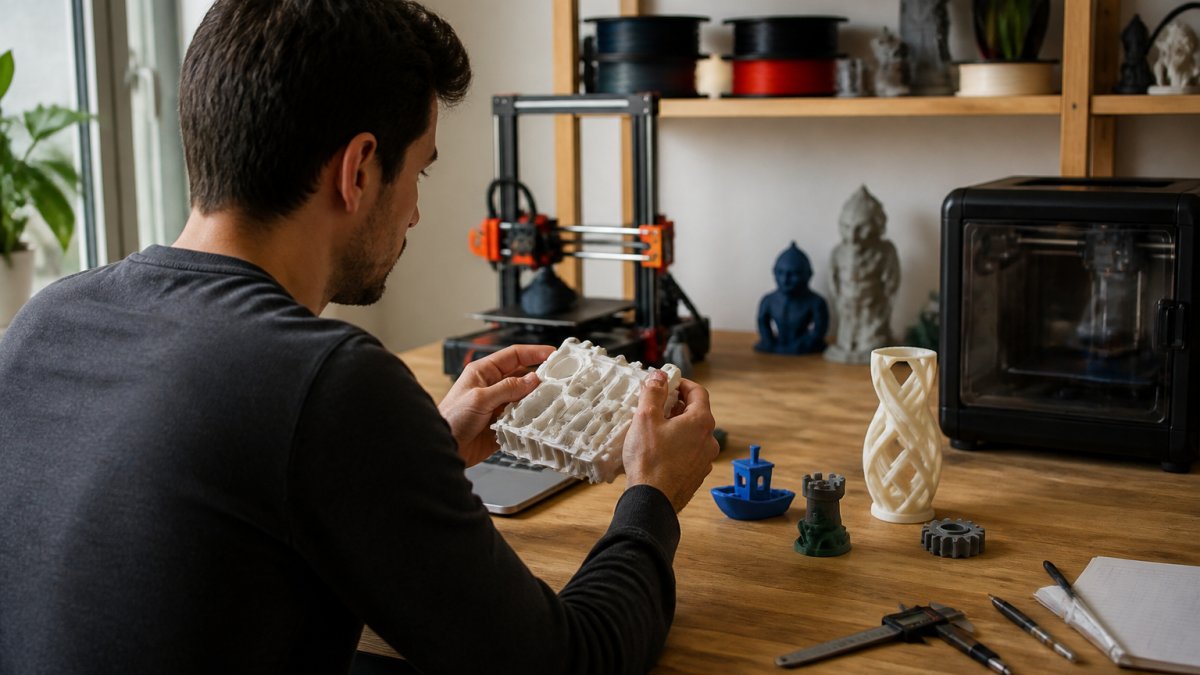
7 Essential 3D Printer Calibration Steps for 2026
Last Updated: October 25, 2026
Quick Summary
3D printer calibration is the foundation of successful printing that improves dimensional accuracy, layer adhesion, and surface quality while extending your printer's lifespan. The seven essential steps include bed leveling, E-steps calibration, flow rate adjustment, temperature tuning, retraction and pressure advance setup, test printing with measurements, and documenting your settings for ongoing maintenance.
- Start calibration with bed leveling, maintaining a consistent nozzle distance of roughly 0.1mm from the bed
- E-steps calibration ensures your extruder pushes the correct amount of filament by measuring actual extrusion against requested amounts
- Temperature towers help find optimal nozzle temperature by printing sections at 5°C increments to identify best layer adhesion and detail
- Document all calibration settings including E-steps, flow rate, temperatures, and retraction values to track changes and troubleshoot quality issues
- Recalibrate after replacing the nozzle, switching filament brands, or when print quality suddenly declines
Table of Contents
- Why 3D Printer Calibration Matters for Print Quality
- Step 1: Master 3D Printer Bed Leveling First
- Step 2: Calibrate Your 3D Printer E-Steps Accurately
- Step 3: Adjust 3D Printer Flow Rate Calibration
- Step 4: Fine-Tune Temperature and Build Your Temperature Tower
- Step 5: Dial In Retraction and Pressure Advance
- Step 6: Run Calibration Test Prints and Measure Results
- Step 7: Document Your Settings and Maintain Calibration
- Get Started With Proper Calibration
- Frequently Asked Questions
Why 3D Printer Calibration Matters for Print Quality
Proper 3D printer calibration is the foundation of every successful print.
The difference between a perfectly calibrated printer and one that's just "close enough" shows up immediately. Dimensional accuracy improves. Layer adhesion strengthens.
Many makers skip calibration because it feels tedious.
Calibration also extends your printer's lifespan. A nozzle running at the wrong temperature wears faster. An extruder pushing too hard strains the gears.
Klipper firmware documentation on printer calibration emphasizes that calibration is not a one-time event. Printers drift. Materials change. Seasonal temperature shifts affect dimensions.
Makers who commit to the process often report fewer failed prints. That's not because they became better designers.
Below, we'll walk you through seven essential steps to calibrate your 3D printer properly. These steps work across most FDM printers and current slicers in 2026.
Step 1: Master 3D Printer Bed Leveling First
Bed leveling is where calibration begins. If your bed isn't level, nothing else matters. A print that starts poorly won't improve as it goes higher. A quality build plate like the Biqu Cryogrip Pro ensures consistent first-layer contact and makes leveling easier.
Why bed leveling comes first: Your nozzle must maintain a consistent distance from the bed across the entire surface. Too close and the nozzle scrapes the bed or gouges the filament. Too far and the first layer won't stick.
Manual vs. Automatic Leveling
Manual leveling requires you to physically adjust the bed height at multiple points. Most printers have three or four adjustment screws under the bed.
Manual leveling takes 10-15 minutes but teaches you how your printer behaves. You develop feel for the right tension. You learn which corners of your bed sit higher or lower.
Automatic leveling uses a sensor to measure the bed surface and adjust automatically. Modern printers often include:
- Inductive or capacitive sensors
- Optical probes
- Nozzle-contact probes like Voron Tap probes
Automatic systems are faster and more consistent. They re-level before every print. However, they still need manual calibration to work correctly. The sensor must be properly mounted and the firmware must be configured right.
For most hobbyists, start with manual leveling to understand the process. Add automatic leveling later once you're comfortable with the fundamentals.
Testing Your First Layer
After leveling, run a first-layer test print. This is a single layer that covers your entire bed, usually a simple square or circular pattern.
Watch the first layer as it prints:
- Good adhesion: The plastic flows smoothly and sticks immediately. No gaps between the nozzle and bed. No squishing or spreading.
- Too close: The nozzle scrapes the bed. You hear a clicking sound. Filament doesn't extrude properly.
- Too far: The plastic doesn't stick. It forms thin strings that lift away from the bed.
If the bed isn't level, one corner will fail while others succeed. Adjust that corner's screw slightly and re-test. Make small adjustments, a quarter turn at a time.
A quality build plate like the Biqu Cryogrip Pro ensures consistent first-layer contact and makes leveling easier. The textured surface grips filament reliably, so you can focus on getting the height right.
Step 2: Calibrate Your 3D Printer E-Steps Accurately
E-steps (extruder steps) tell your printer how much filament to push for a given movement command. If E-steps are wrong, your printer extrudes too much or too little, regardless of other settings.
E-steps calibration is straightforward: you measure how much filament your extruder actually uses and adjust the firmware to match.
Here's the process:
- Heat your nozzle to printing temperature for your filament type.
- Extrude 100mm of filament while measuring how much actually comes out.
- If less than 100mm extrudes, your E-steps are too low. If more comes out, they're too high.
- Calculate the correction: (Requested mm ÷ Actual mm) × Current E-steps = New E-steps.
- Update your firmware and repeat until extrusion is accurate.
Most printers ship with E-steps close enough to work, but they're rarely perfect. Slight variations in extruder gear wear, filament diameter, and motor calibration mean your specific printer needs its own baseline.
Document your E-steps value. You'll reference it later when tuning flow rate.
Step 3: Adjust 3D Printer Flow Rate Calibration
Flow rate (also called extrusion multiplier) controls how much plastic your printer deposits relative to what the slicer expects. It's a percentage adjustment on top of E-steps.
E-steps gets your extruder mechanically accurate. Flow rate fine-tunes the result for real-world conditions like filament diameter variance and nozzle wear.
How to calibrate flow rate:
- Print a simple test object, a 20mm cube or a single-wall box works well.
- Measure the wall thickness with calipers. Target is exactly 1mm (or whatever your nozzle diameter is).
- If walls are thinner than 1mm, increase flow rate by 2-5%.
- If walls are thicker, decrease flow rate by 2-5%.
- Print and measure again until dimensions match.
Flow rate changes compound quickly. Premium filament like Ambrosia ABS maintains tighter tolerances, so your flow rate calibration stays stable longer. Start with small adjustments and test frequently.
Quality filament matters here. Material diameter inconsistency throws off your measurements. Premium filament like Ambrosia ABS maintains tighter tolerances, so your flow rate calibration stays stable longer.
Step 4: Fine-Tune Temperature and Build Your Temperature Tower
Temperature directly affects how filament flows and bonds. Too cold and the plastic won't flow smoothly, you get under-extrusion and weak layer adhesion. Too hot and the material becomes runny, causing stringing and loss of detail.
Different materials need different temperatures:
- PLA: 200-210°C
- PETG: 230-250°C
- ABS: 240-260°C
These ranges are starting points. Your specific filament, nozzle, and printer may need adjustment within the range.
Build a temperature tower to find your optimal temperature quickly:
- Download a temperature tower model (search "temperature tower STL").
- Slice it so each section prints at a different temperature, typically 5°C increments from 200°C to 230°C.
- Print it and inspect each section.
- Look for the section with the best layer adhesion, sharpest details, and least stringing.
- Use that temperature as your baseline.
A high-flow hot end like the TZ 2.0 handles temperature changes more consistently than standard nozzles, so your calibration stays accurate across the range.
Temperature also interacts with print speed. Faster prints need slightly higher temperatures. Slower prints can run cooler. Once you find your baseline, you may need to adjust 5-10°C when you change speed significantly.
Step 5: Dial In Retraction and Pressure Advance
Retraction pulls filament back slightly when the nozzle moves without printing. This prevents stringing, those thin plastic threads that connect different parts of your model.
Retraction basics:
- Retraction distance: how far to pull (typically 4-6mm for Bowden extruders, 1-2mm for direct drive)
- Retraction speed: how fast to pull (typically 40-50mm/s)
- Z-hop: lift the nozzle slightly during retraction to avoid scratching (0.2-0.5mm)
Start with conservative values and test. Too much retraction causes clicking sounds and under-extrusion. Too little causes stringing.
Pressure advance (or linear advance on Marlin) compensates for nozzle pressure changes. When the extruder pushes filament, pressure builds in the nozzle.
Pressure advance reduces this by backing off the extruder slightly before the line ends. The result is cleaner corners and less oozing.
Pressure advance requires firmware support. Klipper firmware includes native pressure advance and makes tuning straightforward. Marlin printers can use linear advance with similar results.
Step 6: Run Calibration Test Prints and Measure Results
Theory only gets you so far. Real prints reveal what actually works.
Essential calibration test prints:
| Test Print | What It Reveals | How to Measure |
|---|---|---|
| 20mm cube | Overall dimensional accuracy | Calipers (target: 20.0mm on all sides) |
| Single-wall box | Flow rate accuracy | Calipers on wall thickness (target: 1mm) |
| Temperature tower | Optimal nozzle temperature | Visual inspection for layer adhesion and detail |
| Retraction test | Stringing and oozing issues | Count visible strings or measure blobbing |
| Pressure advance tower | Nozzle pressure compensation | Look for clean corners and consistent extrusion |
Print each test at your current settings. Measure results carefully. Small errors compound, a 0.1mm error on a 20mm cube is 0.5% off, but on a larger part it becomes more noticeable.
Document your measurements. Track which settings produced which results. This record becomes invaluable when you switch materials or notice quality drift.
A high-performance printer like the Vertigo Mk1 by Automated Layers benefits most from this calibration discipline. Better hardware amplifies the impact of proper tuning.
Step 7: Document Your Settings and Maintain Calibration
Calibration isn't finished once you dial everything in. Printers drift. Nozzles wear. Filament batches vary slightly.
Create a calibration log for your printer:
- Date calibrated
- Ambient temperature
- Filament brand, color, and batch number
- E-steps value
- Flow rate percentage
- Nozzle temperature for each material
- Retraction settings (distance, speed, Z-hop)
- Pressure advance value
- Notable observations or issues
Store this in a file or notebook. When quality drops, you can compare current settings to your baseline and identify what changed.
When to recalibrate:
- After replacing the nozzle
- When switching to a new filament brand or type
- If prints suddenly show quality loss
- Seasonally (temperature and humidity affect dimensions)
- After major maintenance or firmware updates
Recalibration doesn't mean starting from scratch. You already know your printer's approximate values. Recalibration usually takes 30-45 minutes instead of several hours.
Many makers find that maintaining calibration becomes routine. You run a quick test print monthly, compare results to your log, and adjust if needed.
Hobbyist Depot's responsive human support means you're never alone in this process. If your measurements don't match expectations or you're unsure about a setting, reach out.
Get Started With Proper Calibration
Calibration transforms your 3D printer from a finicky device into a reliable tool. The seven steps above work across FDM printers and current slicers in 2026. Start with bed leveling, move through E-steps and flow rate, fine-tune temperature with a tower, dial in retraction and pressure advance, test thoroughly, and document everything.
Get started with Hobbyist Depot and access the parts and support you need for every calibration step. We stock quality build plates, high-flow hot ends, and premium filament, all backed by timely answers from our team when you need guidance.
Frequently Asked Questions
How do I know if my 3D printer needs calibration?
Watch for these signs: first layer adhesion issues, under-extrusion or over-extrusion lines, stringing between parts, uneven print surfaces, or dimensional accuracy problems where your prints don't match the intended size. If you've switched filament types, changed nozzles, or notice a change in print quality, recalibration is due. Most users recalibrate every 50-100 print hours or when switching materials like PLA to PETG.
What should I calibrate first on my 3D printer?
Start with bed leveling and Z-offset, as these are the foundation for every print. A properly leveled bed ensures your first layer sticks correctly. Next, calibrate E-steps to ensure your extruder pushes the right amount of filament. Then move to flow rate and temperature tuning. This order prevents wasting filament on failed prints while you chase other settings.
Can automatic bed leveling replace manual calibration?
Automatic leveling sensors speed up the process and improve consistency, but they don't eliminate calibration. You still need to set Z-offset, verify sensor accuracy, and tune flow rate and temperature. Automatic systems handle mesh generation faster, but manual verification of the first layer is still essential for reliable prints.
How often should I calibrate my 3D printer?
Recalibrate when you change filament materials, switch nozzle sizes, install new hardware, or notice print quality changes. For regular maintenance on the same material, check calibration every 50-100 print hours. Seasonal temperature shifts may also affect extrusion settings. Keep notes of your successful settings for each material so you can quickly return to known good values.